
Aadhaar Download 2025-26
If I’m being honest, downloading Aadhaar in 2026 feels almost like having a safety net you can reach for anytime. I remember the first time I lost my physical Aadhaar card, the panic was real. Since then, I’ve relied on the digital version more than the plastic one.
That’s basically what “Aadhaar Download 2026” is all about: getting your Aadhaar instantly, without running around or waiting. It’s your ID, always ready when you need it.
Download Your e-Aadhaar Instantly Get your Aadhaar card anytime, anywhere. Download a secure digital copy (e-Aadhaar) directly from the UIDAI website in just a few clicks.
Download NowMyAadhaar Dashboard – One Portal for Every Service Login to your personal MyAadhaar dashboard to manage, update, or verify your Aadhaar details. All Aadhaar-related tools are now available in one place.
Access DashboardVisit the Official UIDAI Portal Access the official UIDAI website — the trusted source for Aadhaar services, news, and government notifications.
Visit PortalWhat is e-Aadhaar?
Let me put it in the simplest way possible: e-Aadhaar is just your Aadhaar card in a digital PDF form.
Nothing fancy, nothing extra, it’s the same Aadhaar you’d get on a plastic card, just downloaded from the UIDAI website.
From my own experience, most people first hear “e-Aadhaar” and think it’s some temporary or unofficial thing. It’s not. It’s fully valid everywhere, banks, airports, SIM cards, anything. I’ve personally used only e-Aadhaar for years and never had an issue.
A couple of things make it convenient:

And yeah, it’s password protected, first 4 letters of your name + birth year. Simple.
Prerequisites for Downloading Aadhaar
Before I walk anyone through downloading Aadhaar, I always tell them a simple truth: the process only feels hard when you’re missing one tiny detail. I’ve been stuck myself, staring at the screen because I didn’t have the right number or the right phone.
Once you know what you actually need, the download becomes effortless.
Here’s what I personally make sure I have ready every single time:

Your Aadhaar Number / Enrolment ID / VID
I’ve used all three at different times – Aadhaar when I remember it, Enrolment ID when I lost the card, and VID when I wanted extra privacy. Any one of these works.
The Mobile Number Linked to Aadhaar
This is crucial because the OTP goes here. I’ve been stuck once because my old number was inactive – so now I always check that the SIM is working before I start.
A Stable Internet Connection
Not fancy – just stable enough that the OTP and captcha don’t fail. I’ve noticed even a basic 4G connection works fine.
A Device to Download the PDF
Could be your phone, laptop, anything. Just make sure you can open a PDF afterwards.
The e-Aadhaar Password Format (Name + Birth Year)
Most people forget this part and panic when the PDF asks for a password. It’s always: first 4 letters of your name + your birth year (e.g., RAVI1992).
Methods to Download Aadhaar Card
I’ve had nights where an OTP never arrived and mornings when an Aadhaar was needed in 10 minutes. Over a decade of helping people, I learned the best way to avoid panic: know the right method for your situation. Below are the practical ways I use (and recommend), each with exact steps and a quick tip from real life.
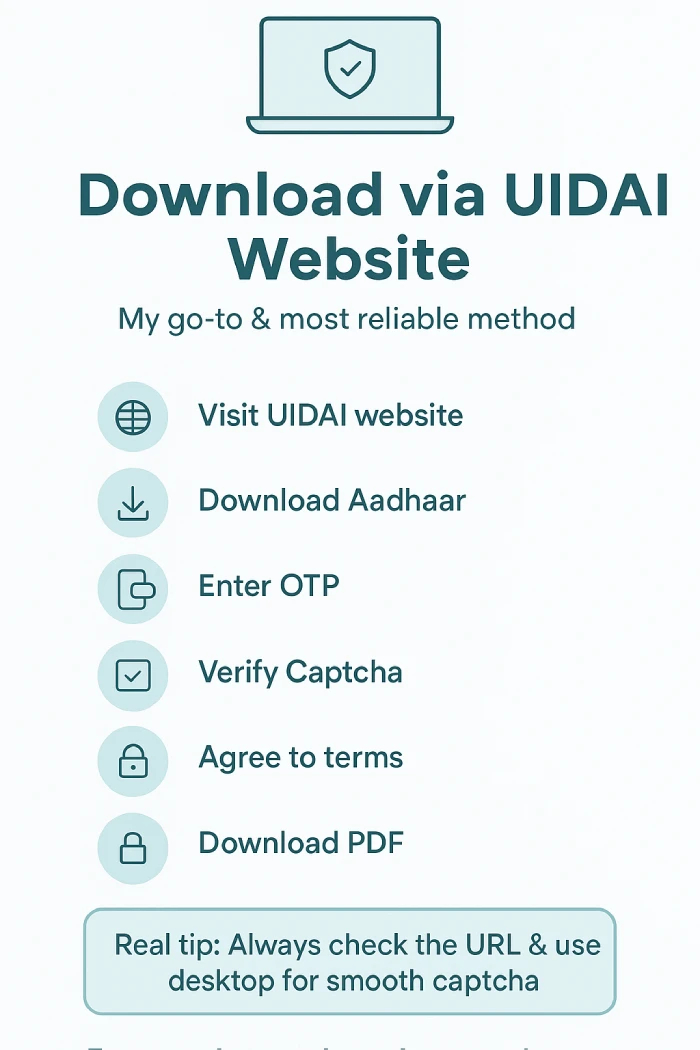
Download via UIDAI Website (myAadhaar Portal)
my go-to
This is the most reliable method I use when I’m at a computer.
Steps
- Visit myaadhaar.uidai.gov.in.
- Click Download Aadhaar under My Aadhaar.
- Enter Aadhaar / EID / VID (whichever you have).
- Complete the captcha and click Send OTP.
- Enter the OTP, choose Regular or Masked, then Verify & Download.
- Open the PDF – password = first 4 letters of name (UPPERCASE) + birth year.
Real tip: I always check the URL and use desktop for smoother captcha/OTP flow. If the OTP delays, refresh only once – double requests sometimes block SMS.
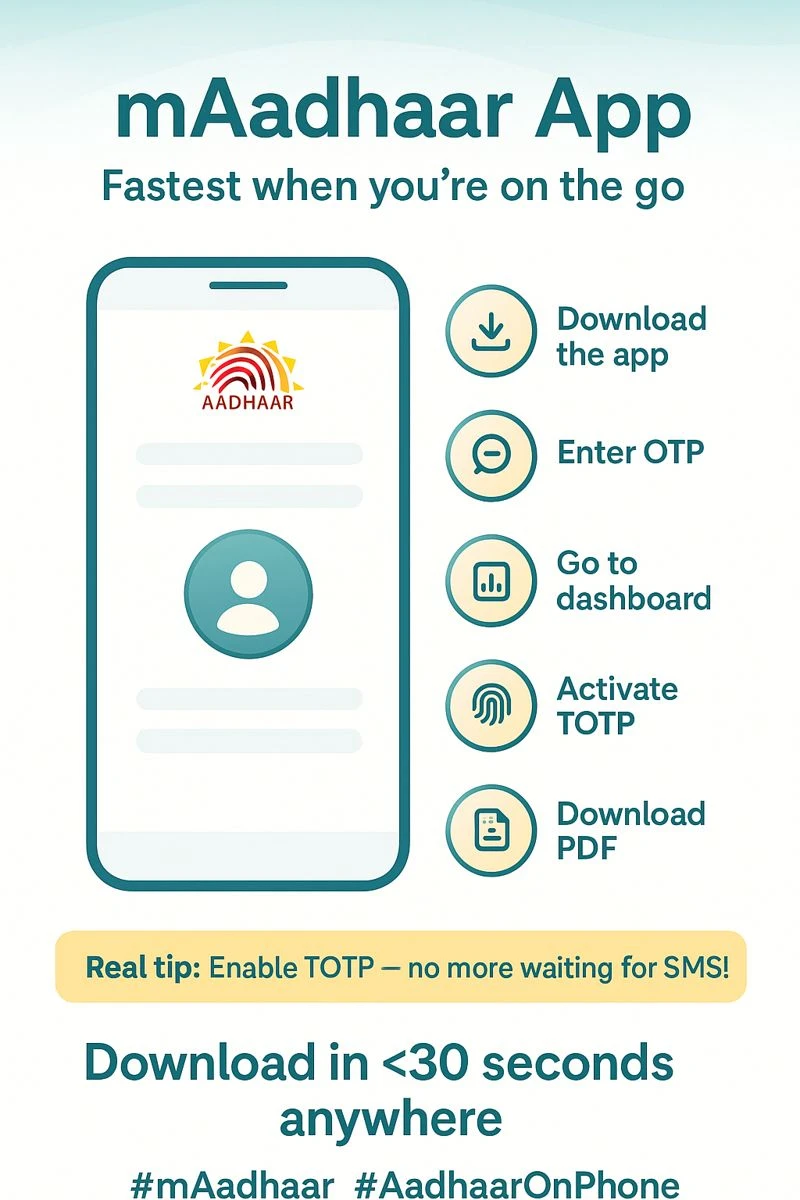
mAadhaar App
fastest on the phone
When I’m out and need Aadhaar immediately, the app saves the day.
Steps
- Install mAadhaar (Android/iOS) → choose language.
- Login with your registered mobile (OTP).
- Dashboard → Get Aadhaar → Download Aadhaar.
- Enter Aadhaar / EID / VID, use OTP/TOTP, then download.
- Open with the same password format.
Real tip: Enable TOTP in the app – it avoids waiting for SMS when networks are flaky.
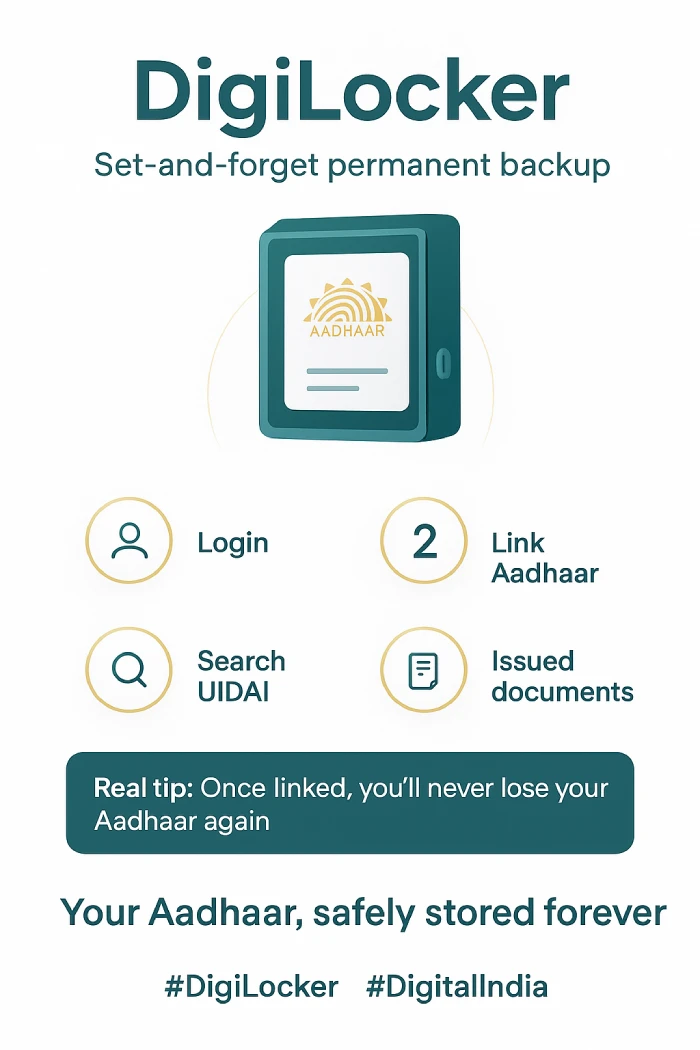
DigiLocker
set-and-forget for frequent use
I recommend DigiLocker to anyone who hates re-downloading documents.
Steps
- Sign in at digilocker.gov.in or app.
- Link/verify with mobile OTP.
- Search UIDAI → Aadhaar, enter Aadhaar number and OTP.
- Aadhaar appears in Issued Documents – download the PDF.
Real tip: Once I linked Aadhaar to DigiLocker, I stopped panicking about losing the card – it’s my permanent backup.
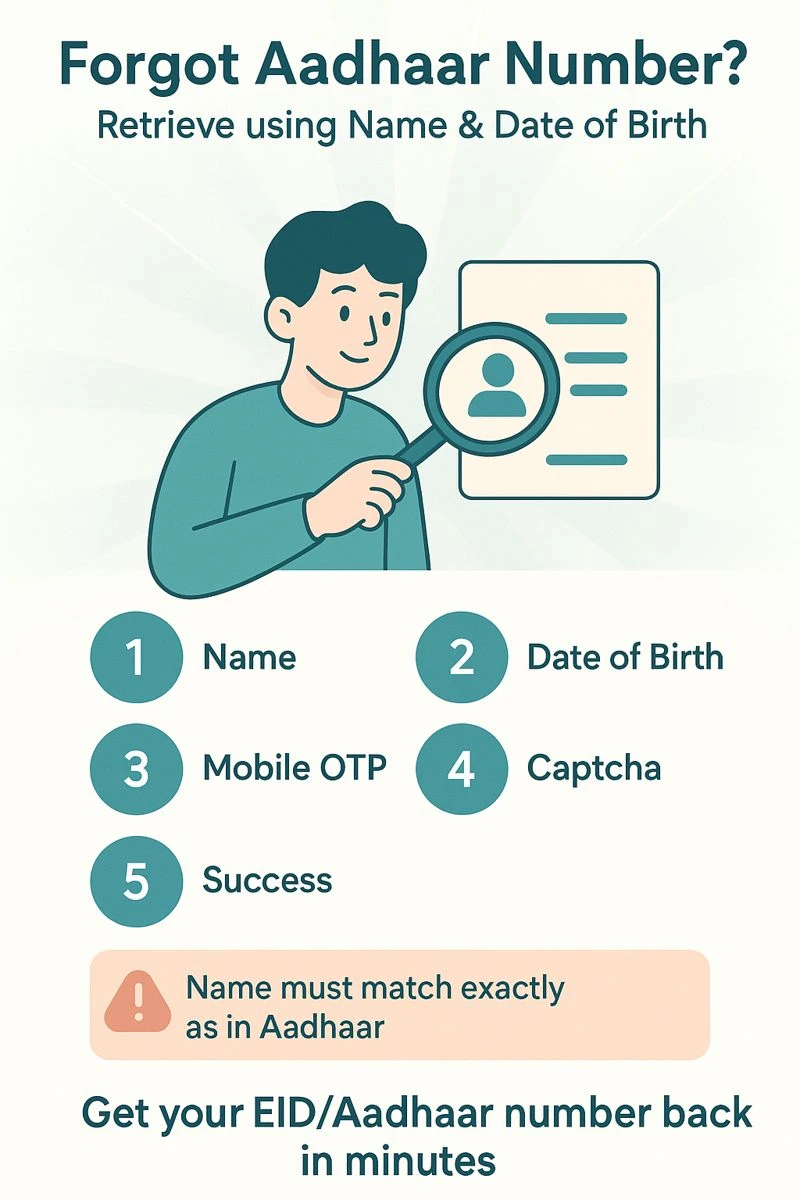
Retrieve by Name & DOB
when you don’t remember numbers
I once helped a neighbour who had no numbers saved; this method recovered their EID.
Steps
- On the myAadhaar portal choose Retrieve EID/Aadhaar Number.
- Enter full name, DOB, registered mobile/email and captcha.
- Click Send OTP, verify, and receive your Aadhaar or EID.
- Use that number to download via Method 1.
Real tip: Make sure you enter the name exactly as in Aadhaar – minor spelling differences can block retrieval.
If your mobile isn’t registered – Aadhaar Seva Kendra (ASK)
I’ve escorted elderly relatives here – it’s slower, but it works when online isn’t possible.
Steps
- Find nearest Aadhaar Seva Kendra on UIDAI.
- Carry an alternate ID (PAN, Voter ID, etc.).
- Authenticate with biometrics at the center.
- Request download/print; pay the small fee (prints/PVC).
Real tip: Book an appointment if possible – walk-ins can mean long waits.

Quick reasoning & takeaway (what I’d do if I were you)
If I needed Aadhaar right now, I’d:

That simple decision tree has saved me — and others I help — from last-minute panic more times than I can count.
How to Print Your e-Aadhaar
I’ll tell you something from my own experience — downloading e-Aadhaar feels easy, but printing it the right way is where most people slip. I remember once printing mine in a hurry; the QR code came out blurry, and the telecom guy looked at me like I brought a fake document. That tiny moment taught me how important a clean print really is.
Here’s the simple version I now follow every time — and I promise it works smoothly:
Open Your e-Aadhaar PDF (with the correct password)
After downloading, open the PDF. It will ask for a password. Just type:
First 4 letters of your name (CAPS) + your birth year
Example → RAHI1993
That’s it.
Use a Good Printer (Home or Shop)
If you’ve got a decent printer at home, great. If not, honestly – just go to a nearby photocopy shop. Those guys print Aadhaar all day long; they know what clarity and size settings work best.
Print on A4 Paper (Actual Size)
Tell them (or select yourself):
A4 paper
Actual Size (100%)
Color is better, but black & white is also fully valid
Make sure the QR code looks sharp
I always check the QR code first because that’s what gets scanned everywhere.
Optional: Laminate It Lightly
I like laminating it so it doesn’t tear in my wallet. But go for thin lamination – thick ones sometimes bend the QR code.
What Is a Masked Aadhaar Card?
A Masked Aadhaar Card is simply a safer, privacy-friendly version of your regular Aadhaar. Instead of showing your full 12-digit Aadhaar number, it hides the first 8 digits and displays only the last 4. Everything else — your photo, QR code, and personal details — remains exactly the same.
The purpose of this version is to let you share your Aadhaar when identity proof is needed without exposing your complete Aadhaar number. It’s officially issued by UIDAI and works for most situations where full Aadhaar verification isn’t required.
This helps protect your information when you’re submitting documents to apps, private companies, hotels, or any place where you want to avoid unnecessary sharing of your full Aadhaar number.
In simple terms, a Masked Aadhaar gives you the identity proof you need while keeping your number private and secure.
Features of the Masked Aadhaar Card
A Masked Aadhaar comes with a few smart features that make it safer to share than your regular Aadhaar card:
Only the Last 4 Digits Are Visible
The biggest feature is privacy. Your full Aadhaar number stays hidden – only the last four digits appear. This reduces the chances of misuse when you’re sharing your ID in places that don’t actually need your full number.
Fully Valid & Accepted
Even though the number is masked, the document itself is 100% valid. It’s officially issued by UIDAI, so you can use it for identity proof wherever a full Aadhaar number isn’t required.
Same QR Code for Verification
The QR code on a masked Aadhaar remains unchanged. Anyone who scans it will still be able to verify your identity safely – without exposing your full details.
Looks Just Like the Regular Aadhaar
Everything else stays the same: your name, photo, address, date of birth, and the card layout. It’s just a privacy-focussed version of the normal Aadhaar.
Free to Download Anytime
UIDAI allows you to download a masked Aadhaar instantly from the official website – no extra cost, no additional steps.
FAQs
Conclusion
Aadhaar has become one of those things we all end up needing again and again — whether it’s for opening a bank account, verifying our identity, or simply filling out a form. That’s why being able to download your Aadhaar instantly, carry it digitally, or use a Masked Aadhaar for privacy makes life a lot easier.
The good thing is, UIDAI has made the whole process simple: you can download it from the website, the mAadhaar app, or even DigiLocker. And once you understand the small steps — OTP, password format, masked vs. regular version — everything falls into place.
At the end of the day, having access to your e-Aadhaar isn’t just convenient; it’s peace of mind. You always have an official, updated ID in your phone whenever you need it, without depending on physical copies or worrying about losing them.